Install the new Cloudinary VS Code Extension to bring media asset management directly to your IDE. Browse, search, upload, and reference assets without switching contexts.Learn How
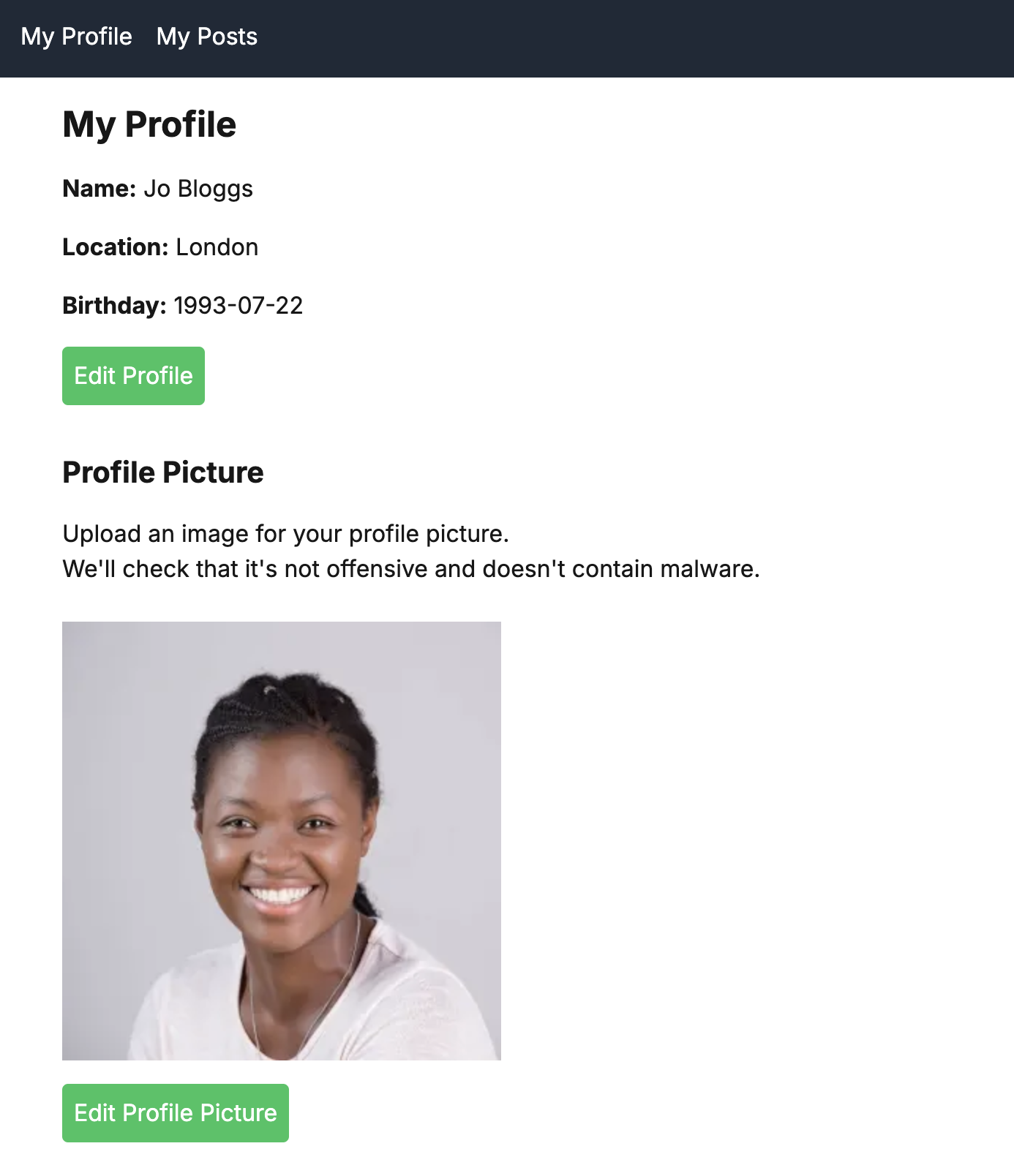
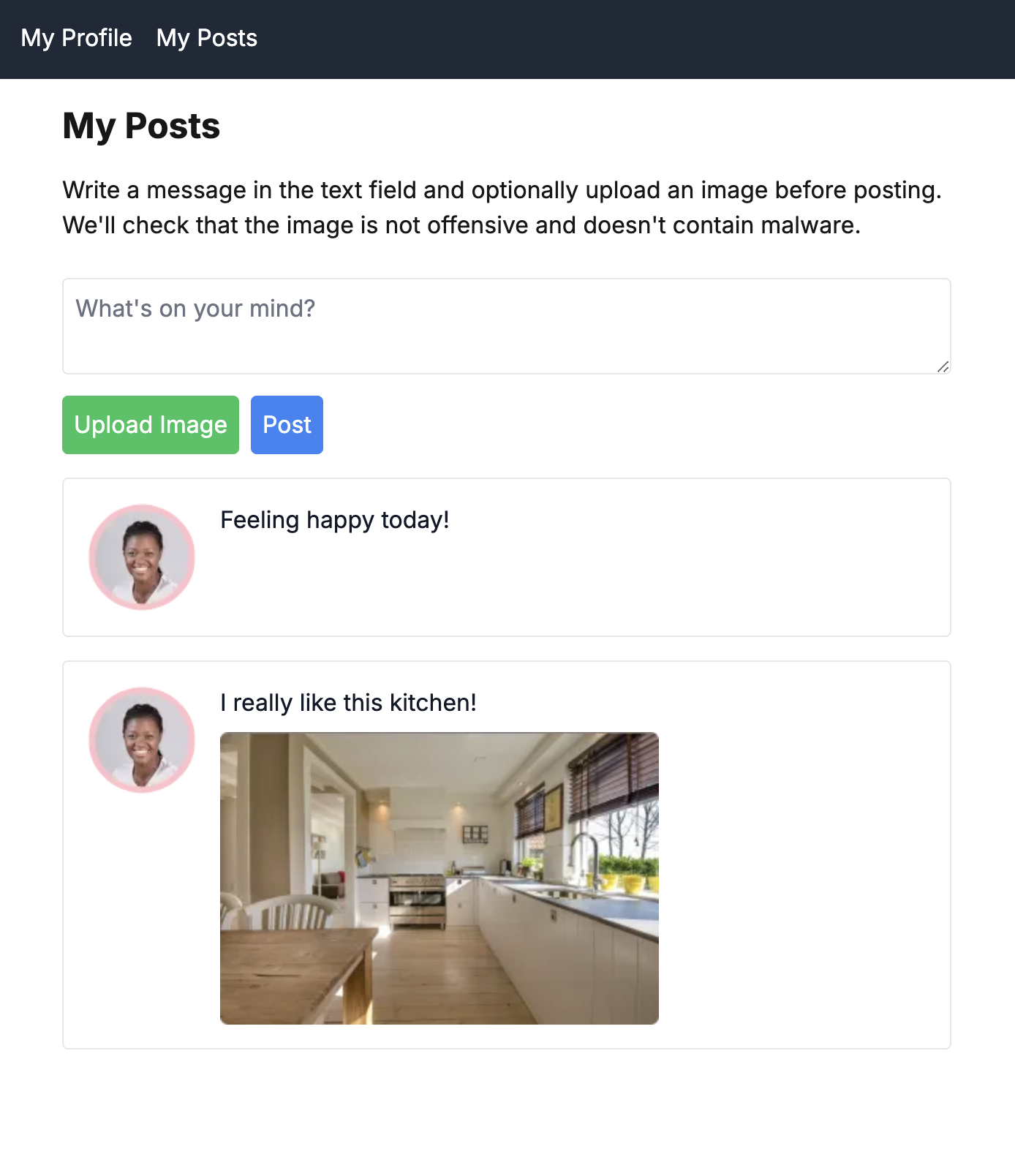
This guide demonstrates how to build a secure social media-style application that handles user-generated content (UGC) using Cloudinary's advanced capabilities. The app features a Profile page where users can manage their personal information and upload a profile picture, along with a Posts page where they can share thoughts and images.
Profile pagePosts page
View the code
You can find the code for this sample project in GitHub.
To try out your app locally, you need to set up a secure tunnel connecting the internet to your locally running application so that the webhooks sent by Cloudinary on upload are caught and handled by the app. You can use a tool such as Ngrok to do this. Otherwise, you need to deploy the app using a service such as Vercel. Whichever method you choose, make a note of your app's domain (for example, a-b-c-d.ngrok-free.app or a-b-c-d.vercel.app). By default, the app runs on port 3000.
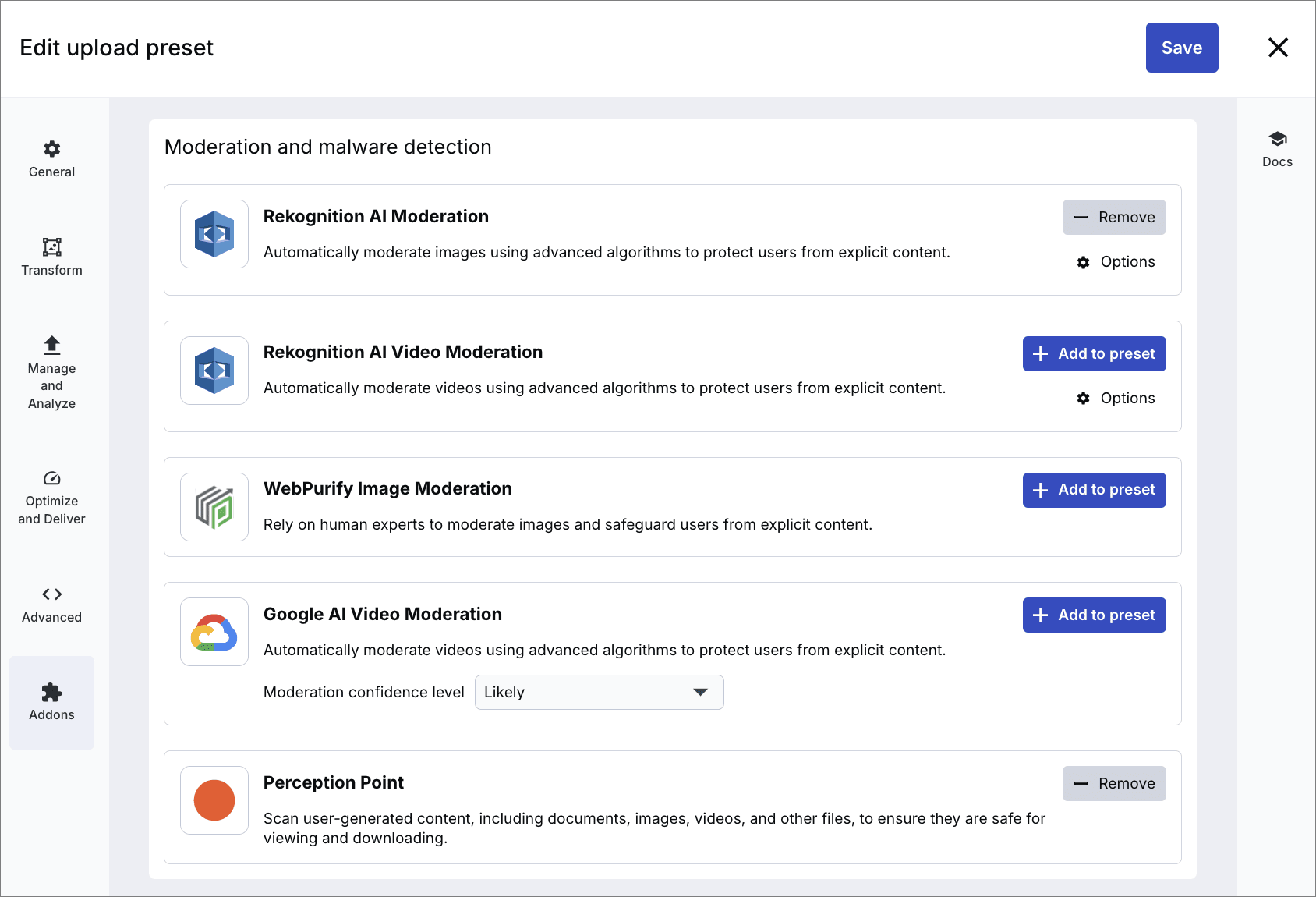
Create an upload preset called ugc-profile-photo. (You can use a different name, but if you do, you also need update the uploadPreset value in cloudinary.ts.) See instructions on how to configure your upload preset.
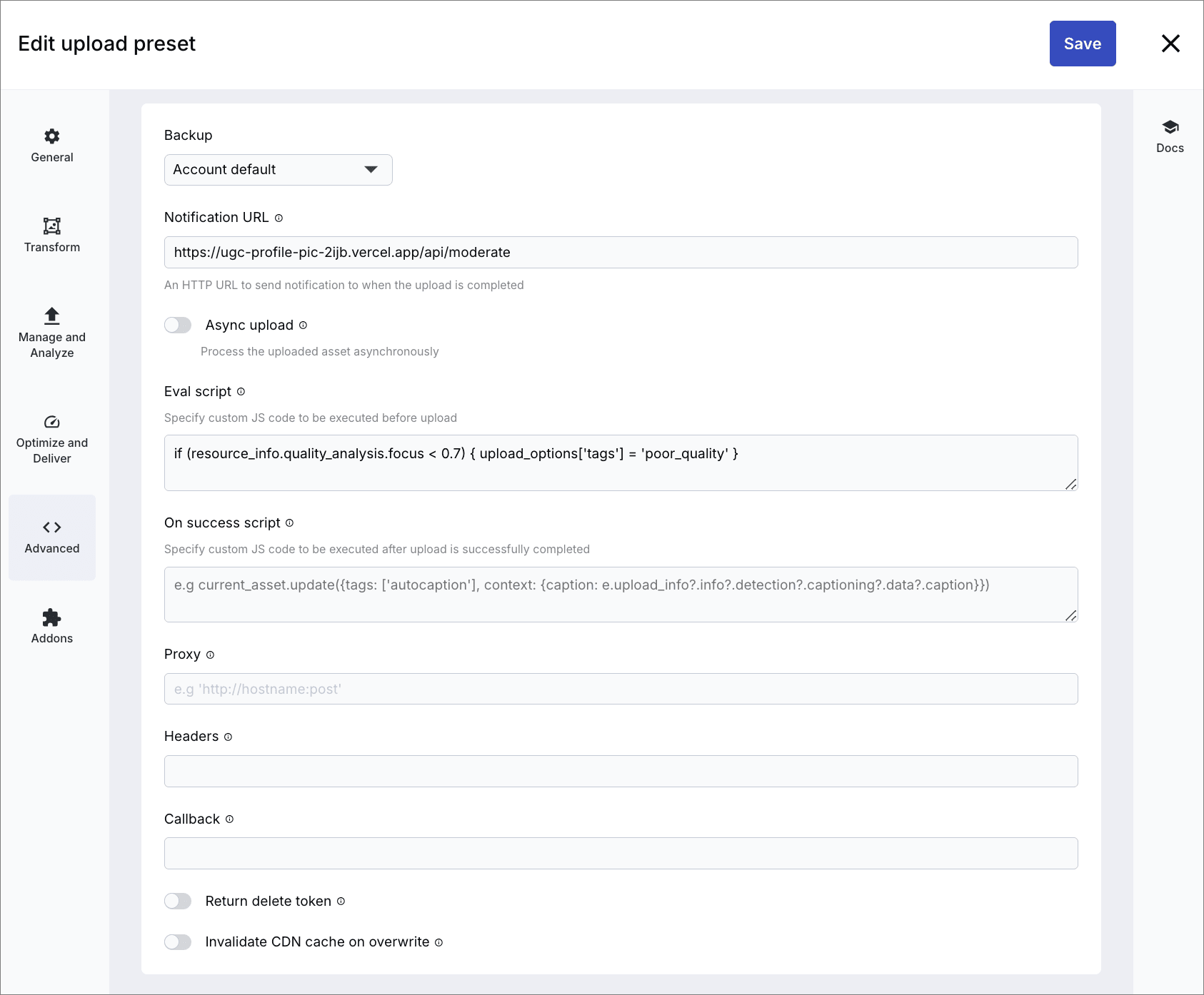
Ensure that the Notification URL in your upload preset is set to: https://<your app's domain>/api/moderate
Upload an image to use as the default image (for example this image), and set its public ID to avatar-pic. Alternatively, use an image that's already in your product environment, and change the value of defaultImage in cloudinary.ts to its public ID.
The API endpoint for your app. To try out your app locally, you need to set up a secure tunnel connecting the internet to your locally running application so that the webhooks sent by Cloudinary on upload are caught and handled by the app. You can use a tool such as Ngrok to do this. Otherwise, you need to deploy the app using a service such as Vercel.
Eval script
if (resource_info.quality_analysis.focus < 0.7) { upload_options['tags'] = 'poor_quality' }
JavaScript code that checks the quality analysis and adds a poor_quality tag if the focus is less than 0.7.
The Upload widget is created using the createUploadWidget function:
upload-widget.tsx
The configuration parameters are set as follows:
Parameter
Value
Meaning
cloudName
CLOUDINARY_CONFIG.cloudName
This is the name of product environment to which the images are uploaded. You need to change this for your environment in cloudinary.ts.
clientAllowedFormats
image
Only images are permitted to be uploaded.
uploadPreset
CLOUDINARY_CONFIG.uploadPreset
This is the name of the upload preset, which defines what happens on upload. It is set in cloudinary.ts. See Upload preset configuration.
sources
['local']
Only images from the user's local environment can be uploaded. You can change this to allow more sources, if required.
multiple
false
Only one image can be selected.
maxFiles
1
Only one image at a time can be uploaded.
The callback function async (error: any, result: any) => handles the upload results:
If the upload returns an error, then the error is displayed.
A successful upload clears any displayed errors, activates the loading state (to start the spinner), captures the current timestamp and starts the moderation check.
The UploadWidget component renders a button, which opens the widget in response to a click:
upload-widget.tsx
The UploadWidget component is used in page.tsx and posts/page.tsx:
page.tsx
The code is identical for each page, except for the button text.
posts/page.tsx
The props are specific to the page, so for example, the handleUploadSuccess function in page.tsx has different functionality to the handleUploadSuccess function in posts/page.tsx.
The UploadWidget component primarily manages one piece of state - the Cloudinary Upload widget instance itself:
upload-widget.tsx
This state is handled in few places:
Initialization - in the useEffect:
upload-widget.tsx
Usage - in the click handler:
upload-widget.tsx
Props for external state management - the component doesn't manage upload state itself, but instead relies on props to communicate with its parent:
upload-widget.tsx
The actual upload status, errors, and loading states are managed by the parent components (pages), making use of the "lifting state up" React pattern - the widget itself manages only what it absolutely needs to (the widget instance), while letting parent components manage the states that might need to be shared or displayed elsewhere in the app:
On successful upload, the checkModeration function is called every second to poll the backend endpoint, seeing if a moderation result has been returned for the asset.
The backend endpoint handles the frontend polling requests to check the moderation status.
If a moderation result is found, a response is returned, with the status set to approved or rejected as applicable. If approved, the quality assessment is also performed.
The quality flag is checked following a successful upload, and if the quality has been flagged as poor, the enhance, generativeRestore and upscale effects are applied to the profile picture.
On the Profile page, the profile picture is resized to a width and height of 300 pixels. If the picture is not already square, then it is cropped. In order to ensure the face is kept in the crop, the gravity is set to focus on the face (focusOn(face())). In case there isn't a face in the image, the fallback gravity is set to auto (the most interesting part of the image as determined by AI) (fallbackGravity(autoGravity())).
Both format and quality are also set to auto, which means the image is delivered to the browser in the most optimal format and with the most optimal compression applied.
On the Posts page, the profile image has enhancements applied if applicable, so it resembles the picture on the Profile page, then it's resized to 75 x 75 pixels, using the same gravity as for the profile picture. Its corners are rounded to the maximum, forming a circle (roundCorners(max())), and a pink outline is applied (effect(outline().color("pink"))).
Both format and quality are also set to auto, which means the image is delivered to the browser in the most optimal format and with the most optimal compression applied.
posts/page.tsx
The full URL generated for the profile picture, including quality enhancements, is:
 Ask AI
 Profile page
 Posts page