More Related Content

PPTX

PDF
それでも僕はユニットテストを書きたい - Pester powered by PowerShell 
PDF
PowerShellが苦手だった男がPowerShellを愛するようになるまで 
PDF

PPTX
Power shell の基本操作と処理の自動化 v2_20120514 
PPTX
Powershell 超絶基礎 勉強会 v1 (もっと新しいバージョンがあります) 
PPT
Shibuya Pm Tt08 Advanced Mogilefs 
PDF
Windows PowerShell 2.0 の基礎知識 What's hot

PPT

PDF

PDF

PDF

PPTX
Eggplant Functional - Lesson 8 (Japanese slides) 
PDF
WordPress 私はこんな設定をしています【WordBench Nagoya 9月勉強会】 
PPTX
Powershell勉強会 v5 (こちらが最新です。) 
PPTX
Eggplant Functional - Lesson 11 (Japanese slides) 
PDF

PPTX

PPTX

PDF

PPTX
Eggplant Functional - Lesson 9 (Japanese slides) 
PDF
#glassfishjp GlassFishとProfiler 
PDF
20121115 fukuoka sublime0_kuroneko ![[JP] Service Cloud Trailblazers Meetup 11 Case Feed / ケースフィードのカスタマイズとWinter '...](https://cdn.slidesharecdn.com/ss_thumbnails/20191025-jp-service-cloud-trailblazerscasefeed-191102033011-thumbnail.jpg?width=640&height=640&fit=bounds)
PDF
[JP] Service Cloud Trailblazers Meetup 11 Case Feed / ケースフィードのカスタマイズとWinter '... 
PPTX
13016 n分で作るtype scriptでnodejs 
PDF
Web programming introduction Viewers also liked

DOCX

PPTX

PPTX

PPTX

PPTX

PPTX

PPTX
Similar to Power shellmemo

PPTX

PPTX
Powershell勉強会 v4 (もっと新しいバージョンがあります。) 
PPTX
Powershell勉強会 v2 (もっと新しいバージョンがあります) 
PPTX
Powershell勉強会 v3 (もっと新しいバージョンがあります) 
PDF

PDF

PDF
Windows PowerShell 2.0 の基礎知識 
PDF

PPTX

PPTX
04 windows powershellスクリプト作成の基礎知識 
PDF
IT Pro のための PowerShell スクリプティング 
PDF
Powershell のセキュリティ (大都会ver) 
PPTX

PDF
PowerShell を使用した Hyper-V の管理 
PPTX
社内システムの移行に役立った“時間節約”方法~PowerShellとExcelを上手に使おう 
PPTX

PDF
AWS Tools for Windows PowerShell 
PDF

PPTX

PDF
PowerShell+Lisp = ? (第2回残パン会) More from ytanno

PPTX
How to be friend with Attiny202 which is small microcontroller 
PPTX
Process of Interval Photograph System 
PPTX
How to make an effort for good job 
PPTX
How To Bind Cuda And OpenCV 
PPTX
How to autorun graphic application 
PPTX
How to setup 3D printer (Ender 3 pro) 
PPTX

PPTX
How to write code in Attiny10 
PPTX
How to set up two i2cs on Attiny841 
PPTX
How to write code on MachXO2 
PPTX

PPTX

PPTX
さるでも分かりたい9dofで作るクォータニオン姿勢 
PPTX

PPTX

PDF

PDF

PDF

PDF
VisualStudinoの役に立ちそうな拡張機能をまとめてみた 
PDF
Power shellmemo
- 1.
- 2.
- 3.
- 4.
- 5.
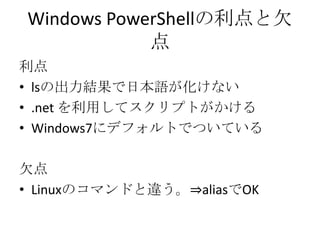
Windows PowerShellの利点と欠
点
利点
• lsの出力結果で日本語が化けない
• .net を利用してスクリプトがかける
• Windows7にデフォルトでついている
欠点
• Linuxのコマンドと違う。⇒aliasでOK
- 6.
- 7.
- 8.
- 9.
- 10.
- 11.
- 12.
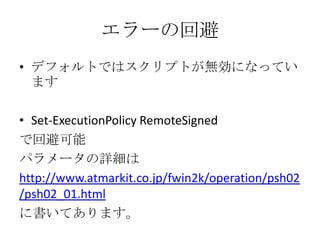
エラーの回避
• デフォルトではスクリプトが無効になってい
ます
• Set-ExecutionPolicy RemoteSigned
で回避可能
パラメータの詳細は
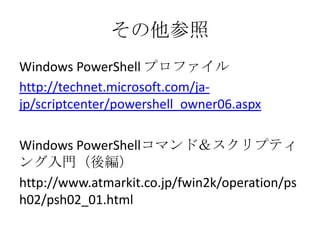
http://www.atmarkit.co.jp/fwin2k/operation/psh02
/psh02_01.html
に書いてあります。
- 13.
- 14.
- 15.
- 16.
- 17.
- 18.