
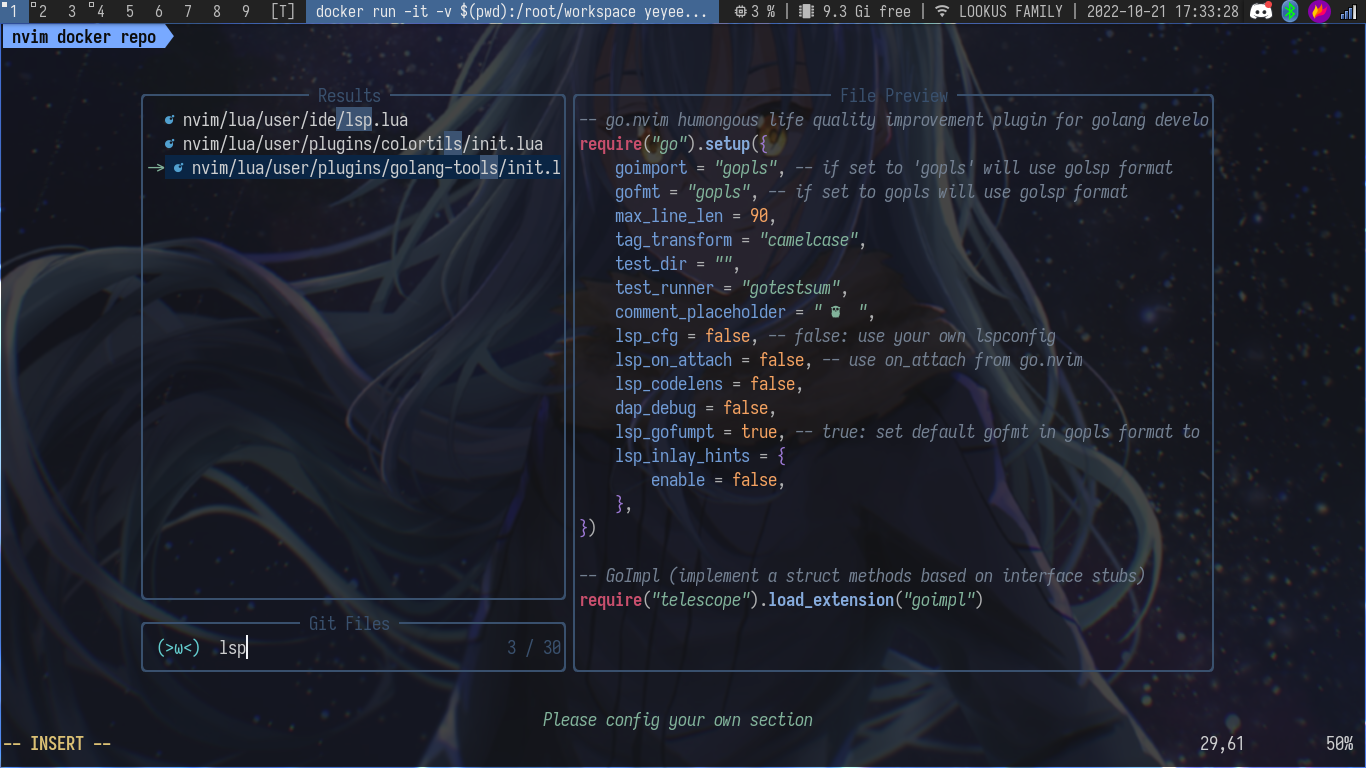
Terminal used: kitty. If you want to also match the terminal theme, you can see my kitty.conf file.
- Docker image based on Alpine Linux for minimal footprint, though it already eats 2 GB of storage. The neovim itself is small in size, but the development tools are not.
- Colorscheme using nightfox, treesitter based.
- Native LSP (no install helper). Configured LSP:
gopls(Golang)astro(Astro JS)tsserver(Javascript, Typescript)eslint(Javascript, Typescript, etc)intelephense(PHP)ccls(C/C++)pyright(Python)
- Improved LSP experience using lspsaga , LSP signature
- Debugging with nvim-dap
- Autocompletion engine using nvim-cmp with VSCode like icons using lspkind.
- Snippet engine using UltiSnips.
- Treesitter setup, installed parsers:
gohtmlcssjavascripttypescripttsxastropythonjsonyamlqueryproto(protobuf files)comment(TODO:,WARN:, comment highlighting)
- Lualine for statusline, using pre-made config
evil lualine. - Barbar handling vim buffers turned into handling tabs.
- Nvim-Tree for file tree viewer.
- Telescope superpower
- Gitsigns for git integration.
- Formatter , with configured formatter:
- Astro JS (
prettier) - HTML/CSS (
prettier) - JSON (
prettier) - Markdown (
prettier) - Javascript / Typescript (
prettier) - React / React Typescript (
prettier) - C/C++ (
clang-format) - Python (
autopep8) - Golang (
gofmt&gofumpt) - Proto (
clang-format)
- Astro JS (
- Vim Commentary toggling comments, made easy.
- Vim Surround surrounding something with tags, parantheses, curly braces, etc, made easy.
- Colortils color selector, useful for working with CSS.
Run:
docker pull yeyee2901/nvim-docker:1.0

# stable version with commit locks
docker pull yeyee2901/nvim-docker:1.0-stable
Or, you can visit the dockerhub directly if you want to take a look.
- First, make sure docker is installed in your system. I won't go into details on how to install this, each system has their own package manager right?
- Pull this repo
git pull https://github.com/yeyee2901/nvim-docker.git- Before building the image, you can customize the neovim configuration file first, in case you want to add more plugins, etc 👌
- Build it:
docker build -t nvim-docker:1.0 --no-cache .docker-build -t nvim-docker:1.0 --no-cache .docker run -it --volume $(pwd):/root/workspace yeyee2901/nvim-docker:<version>docker-run -it --volume $(pwd):/root/workspace yeyee2901/nvim-docker:<version>- Firstly, you can detach from the container by pressing
CTRL-P CTRL-Q, this wil keep the container from shutting down - To attach to the container again you can use
docker attach.
docker attach <container_id>- If you use
docker attach, this is ≠ remote login, this willattachyou to the same shell session, meaning, anything you type on the first window will also be reflected on the second window you used toattach, since they're the same shell session. - You can do remote login to the container from your local shell by using
docker exec:
docker exec -it <container_id> /bin/bash- This will spawn you a new
bashsession, which is actually like SSH-ing to the container. Docker doesn't need SSH, we already have this.
- Leader:
<Space> - LSP
gd: go to definitionK(Shift + k) : docs hover<Leader>k/<Leader>j: jump diagnostic prev / next<Leader>r: rename globally (multiple files)<Leader>o: toggle code outline (like in VSCode), provided by LSP Saga<Leader>lp: peek definition, provided by LSP Saga<Leader>la: show possible code action in current line, provided by LSP Saga<Leader>lr: Show references, provided by LSP Saga<Leader>ff: run formatter (uses formatter.nvim)
- Telescope, all telescope keybinds are prefixed with
<Leader>t<Leader>tf: Telescope find_files<Leader>tgf: Telescope git_files<Leader>ts: Telescope live_grep (uses ripgrep)<Leader>tgf: Telescope git_files<Leader>tgca: Telescope git_commits (show all commits history)<Leader>tgca: Telescope git_bcommits (show commits for current buffer), press<C-vto view file diff side by side<Leader>td: Telescope diagnostics (show all diagnostics for current buffer)
- Golang
<Leader>Gt: inject struct tags in current struct<Leader>Gi: run go import (formatting + remove unused imports)<Leader>GI: implement target interface for current struct (uses telescope plugin goimpl)
- Barbar (buffer management), all of it are prefixed with
<Tab><Tab>l: BufferNext<Tab>h: BufferPrevious<Tab>x: BufferGoto x (where x = number)<Tab>0: BufferLast<Tab>H: BufferMovePrevious<Tab>L: BufferMoveNext<Tab>p: toggle BufferPin<Tab><Tab>: BufferPick (quick jump to buffer using letter codes)<Tab>q: BufferClose<Tab>Q: BufferCloseAllButPinned
You can see the full list of keymaps in nvim/lua/keymaps.lua, or you can press <Leader>t? to launch Telescope keymaps