-
Why The Hell Would I Use Node.js? https://www.toptal.com/nodejs/why-the-hell-would-i-use-node-js
-
https://www.freecodecamp.org/news/the-definitive-node-js-handbook-6912378afc6e/
- How to build a Node.js eCommerce website for free https://adrianmejia.com/how-to-build-a-node-js-ecommerce-website-for-free/
- Major.Minor.Patch (4.1.3)
- https://www.udemy.com/course/nodejs-master-class/learn/lecture/9990332#overview
let obj = {

    reverseStrWithRecursive: str => {
        if (str.length < 2) return str;
        let tmp = str.substr(1);
        return obj.reverseStrWithRecursive(tmp) + str[0]; //inside node the recusive is
    }
}

module.exports = obj;
- open node.js console project under the vs2019
"Right click on project" -> Open Command Promp Here..
>node <filename> // or project with >npm start

make sure update package.json
"scripts": {
    "start": "node app.js"
}

package.json
{
  "name": "nodejs-console-app",
  "version": "0.0.0",
  "description": "NodejsConsoleApp",
  "main": "app.js",
  "author": {
    "name": ""
  },
  "scripts": {
    "start": "node app.js"
  }
}
- CallBack - avoid callback hell
- Promises - promise
- Async and Await - async
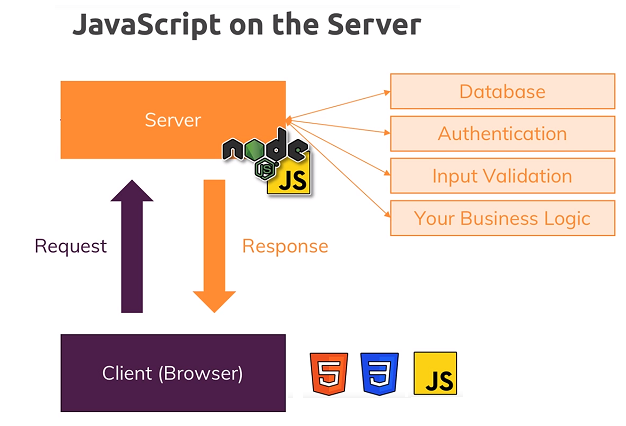
- Node.js is a runtime environment for JavaScript that runs on the server.
- A Node.js app is run by a single process, without creating a new thread for every request. Node provides a set of asynchronous I/O primitives in its standard library. When Node.js needs to perform an I/O operation, like reading from the network, access a database or the filesystem, instead of blocking the thread Node.js will resume the operations when the response comes back, instead of wasting CPU cycles waiting.
- JavaScript allows to create asynchronous and non-blocking code in a very simple way, by using a single thread, callback functions and event-driven programming.
- We don’t have the window object in Node.
- The global object in Node is “global”.
- Unlike browser applications, variables we define are not added to the “global” object.
- Every file in a Node application is a module. Node automatically wraps the code in each file with an IIFE (Immediately-invoked Function Expression) to create scope. So, variables and functions defined in one file are only scoped to that file and not visible to other files unless explicitly exported.
- To export a variable or function from a module, you need to add them to module.exports: module.exports.sayHello = sayHello;
- To load a module, use the require function. This function returns the module.exports object exported from the target module: const logger = require(‘./logger’);
- Node has a few built-in modules that enable us to work with the file system, path objects, network, operating system, etc.
- EventEmitter is one of the core classes in Node that allows us to raise (emit) and handle events. Several built-in classes in Node derive from EventEmitter.
- To create a class with the ability to raise events, we should extend EventEmitter: class Logger extends EventEmitter {}
// function statement
function greet() {
	console.log('hi');
}
greet();

// functions are first-class
function logGreeting(fn) {
	fn();
}
logGreeting(greet);

// function expression
var greetMe = function() {
	console.log('Hi !');
}
greetMe();

// it's first-class
logGreeting(greetMe);

// use a function expression to create a function on the fly
logGreeting(function() {
	console.log('Hello !');
});

// arrow function expression to create a function on the fly
logGreeting(() =>{
	console.log('Hello !');
});
const http = require('http')
const hostname = '127.0.0.1'
const port = 3000
const server = http.createServer((req, res) => {
res.statusCode = 200
res.setHeader('Content-Type', 'text/plain')
res.end('Hello World\n')
})
server.listen(port, hostname, () => {
console.log(`Server running at http://${hostname}:${port}/`)
})
var greet = function() {
	console.log('Hello!');
};

module.exports = greet;
var greet = require('./greet');
greet();
Module._load = function(request, parent, isMain) {
  if (parent) {
    debug('Module._load REQUEST %s parent: %s', request, parent.id);
  }

  var filename = Module._resolveFilename(request, parent, isMain);

  var cachedModule = Module._cache[filename];
  if (cachedModule) {
    updateChildren(parent, cachedModule, true);
    return cachedModule.exports;
  }

  if (NativeModule.nonInternalExists(filename)) {
    debug('load native module %s', request);
    return NativeModule.require(filename);
  }

  // Don't call updateChildren(), Module constructor already does.
  var module = new Module(filename, parent);

  if (isMain) {
    process.mainModule = module;
    module.id = '.';
  }

  Module._cache[filename] = module;

  tryModuleLoad(module, filename);

  return module.exports;
};
// Check the cache for the requested file.
// 1. If a module already exists in the cache: return its exports object.
// 2. If the module is native: call `NativeModule.require()` with the
//    filename and return the result.
// 3. Otherwise, create a new module for the file and save it to the cache.
//    Then have it load  the file contents before returning its exports
//    object.
Module.wrap = function(script) {
  return Module.wrapper[0] + script + Module.wrapper[1];
};

Module.wrapper = [
  '(function (exports, require, module, __filename, __dirname) { ',
  '\n});'
];
var firstname = 'Jane';

(function (lastname) {

	var firstname = 'John';
	console.log(firstname);
	console.log(lastname);

}('Doe'));

console.log(firstname);
// Run the file contents in the correct scope or sandbox. Expose
// the correct helper variables (require, module, exports) to
// the file.
// Returns exception, if any.
Module.prototype._compile = function(content, filename) {

  content = stripShebang(content);

  // create wrapper function
  var wrapper = Module.wrap(content);

  var compiledWrapper = vm.runInThisContext(wrapper, {
    filename: filename,
    lineOffset: 0,
    displayErrors: true,
    importModuleDynamically: experimentalModules ? async (specifier) => {
      if (asyncESM === undefined) lazyLoadESM();
      const loader = await asyncESM.loaderPromise;
      return loader.import(specifier, normalizeReferrerURL(filename));
    } : undefined,
  });

  var inspectorWrapper = null;
  if (process._breakFirstLine && process._eval == null) {
    if (!resolvedArgv) {
      // we enter the repl if we're not given a filename argument.
      if (process.argv[1]) {
        resolvedArgv = Module._resolveFilename(process.argv[1], null, false);
      } else {
        resolvedArgv = 'repl';
      }
    }

    // Set breakpoint on module start
    if (filename === resolvedArgv) {
      delete process._breakFirstLine;
      inspectorWrapper = process.binding('inspector').callAndPauseOnStart;
    }
  }
  var dirname = path.dirname(filename);
  var require = makeRequireFunction(this);
  var depth = requireDepth;
  if (depth === 0) stat.cache = new Map();
  var result;
  if (inspectorWrapper) {
    result = inspectorWrapper(compiledWrapper, this.exports, this.exports,
                              require, this, filename, dirname);
  } else {
    result = compiledWrapper.call(this.exports, this.exports, require, this,
                                  filename, dirname);
  }
  if (depth === 0) stat.cache = null;
  return result;
};
- require is a function that you pass a path to.
- Module.exports is what the require function returns.
- And, this works because your code is actually wrapped in a function, a function expression, that is given these things as function parameters.
The first exposes the object it points to. The latter exposes the properties of the object it points to.
const car = {
brand: 'Ford',
model: 'Fiesta'
}
module.exports = car
//..in the other file
const car = require('./car')
const car = {
	brand: 'Ford',
	model: 'Fiesta'
}
exports.car = car
//or directly
exports.car = {
	brand: 'Ford',
	model: 'Fiesta'
}
//And in the other file, you'll use it by referencing a property of your import:
const items = require('./items')
items.car
//or
const car = require('./items').car
const http = require('http');
const server = http.createServer((req, res) => {
    //console.log(req);
    //process.exit(); //stop server
    //console.log(req.url, req.method, req.headers);
    res.setHeader('Content-Type', 'text/html');
    res.write('<html>')
    res.write('<head><title>my header</title></head>')
    res.write('<body>my body</body>')
    res.write('</html>');
    res.end();
});

server.listen(3000);


/*

You can always do that
by pressing CTRL + C in the terminal/ command prompt window
where you started your server (i.e. where you ran node app.js).

On both requests and responses,
Http headers are added to transport metadata from A to B.

The following article provides a great overview of
available headers and their role:
https://developer.mozilla.org/en-US/docs/Web/HTTP/Headers

function rqListener(req,res){

}
http.createServer(rqListener);
*/
const http = require('http');
const fs = require('fs');

const server = http.createServer((req, res) => {
  const url = req.url;
  const method = req.method;
  if (url === '/') {
    res.write('<html>');
    res.write('<head><title>Enter Message</title><head>');
    res.write('<body><form action="/message" method="POST"><input type="text" name="message"><button type="submit">Send</button></form></body>');
    res.write('</html>');
    return res.end();
  }
  if (url === '/message' && method === 'POST') {
    fs.writeFileSync('message.txt', 'DUMMY');
    res.statusCode = 302;
    res.setHeader('Location', '/');
    return res.end();
  }
  res.setHeader('Content-Type', 'text/html');
  res.write('<html>');
  res.write('<head><title>My First Page</title><head>');
  res.write('<body><h1>Hello from my Node.js Server!</h1></body>');
  res.write('</html>');
  res.end();
});

server.listen(3000);
-
Global features: Keywords like const or function but also some global objects like process
-
Core Node.js Modules: Examples would be the file-system module ("fs"), the path module ("path") or the Http module ("http")
-
Third-party Modules: Installed via npm install - you can add any kind of feature to your app via this way
Global features are always available, you don't need to import them into the files where you want to use them.
Core Node.js Modules don't need to be installed (NO npm install is required) but you need to import them when you want to use features exposed by them.
const fs = require('fs');

//You can now use the fs object exported by the "fs" module.

//Third-party Modules need to be installed (via npm install in the project folder) AND imported.

// In terminal/ command prompt
npm install --save express-session
// In code file (e.g. app.js)
const sessions = require('express-session');
The good thing about local dependencies is that you can share projects without the node_modules folder (where they are stored) and you can run npm install in a project to then re-create that node_modules folder. This allows you to share only your source code, hence reducing the size of the shared project vastly. The attached course code snippets also are shared in that way, hence you need to run npm install in the extracted packages to be able to run my code! run nodemon app.js would not work in the terminal or command line because we don't use local dependencies there but global packages. You could install nodemon globally if you wanted (this is NOT required though - because we can just run it locally): npm install -g nodemon would do the trick. Specifically the -g flag ensures that the package gets added as a global package which you now can use anywhere on your machine, directly from inside the terminal or command prompt.
- local packages are installed in the directory where you run npm install , and they are put in the node_modules folder under this directory
- global packages are all put in a single place in your system (exactly where depends on your setup), regardless of where you run npm install -g
- In general, all packages should be installed locally. This makes sure you can have dozens of applications in your computer, all running a different version of each package if needed.