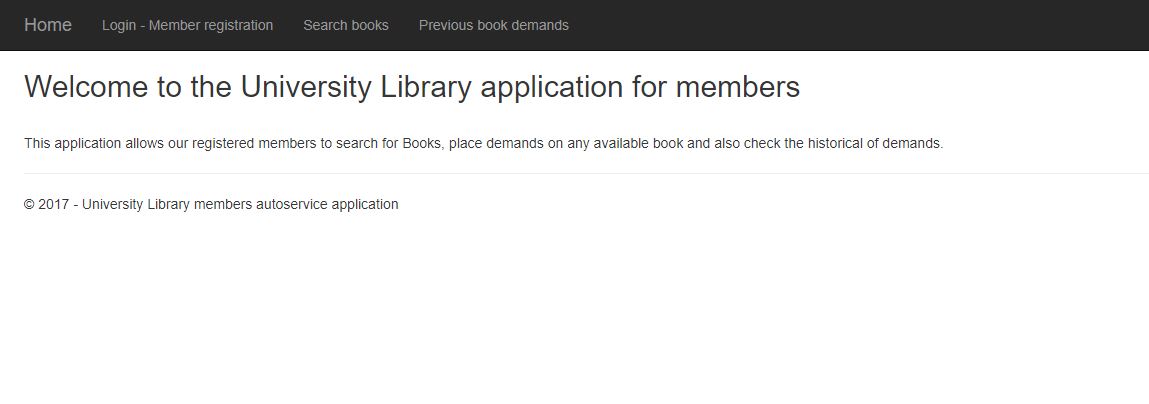
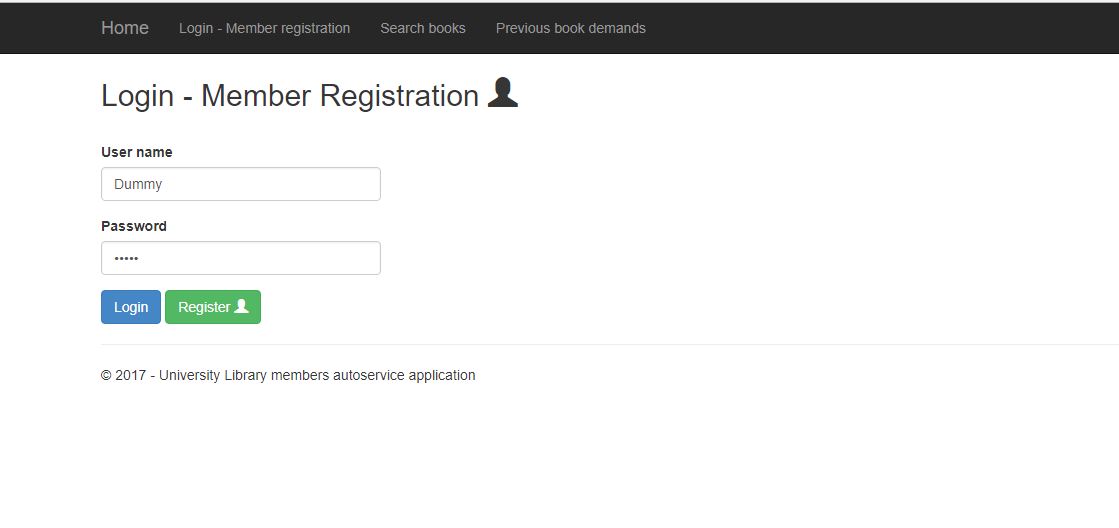
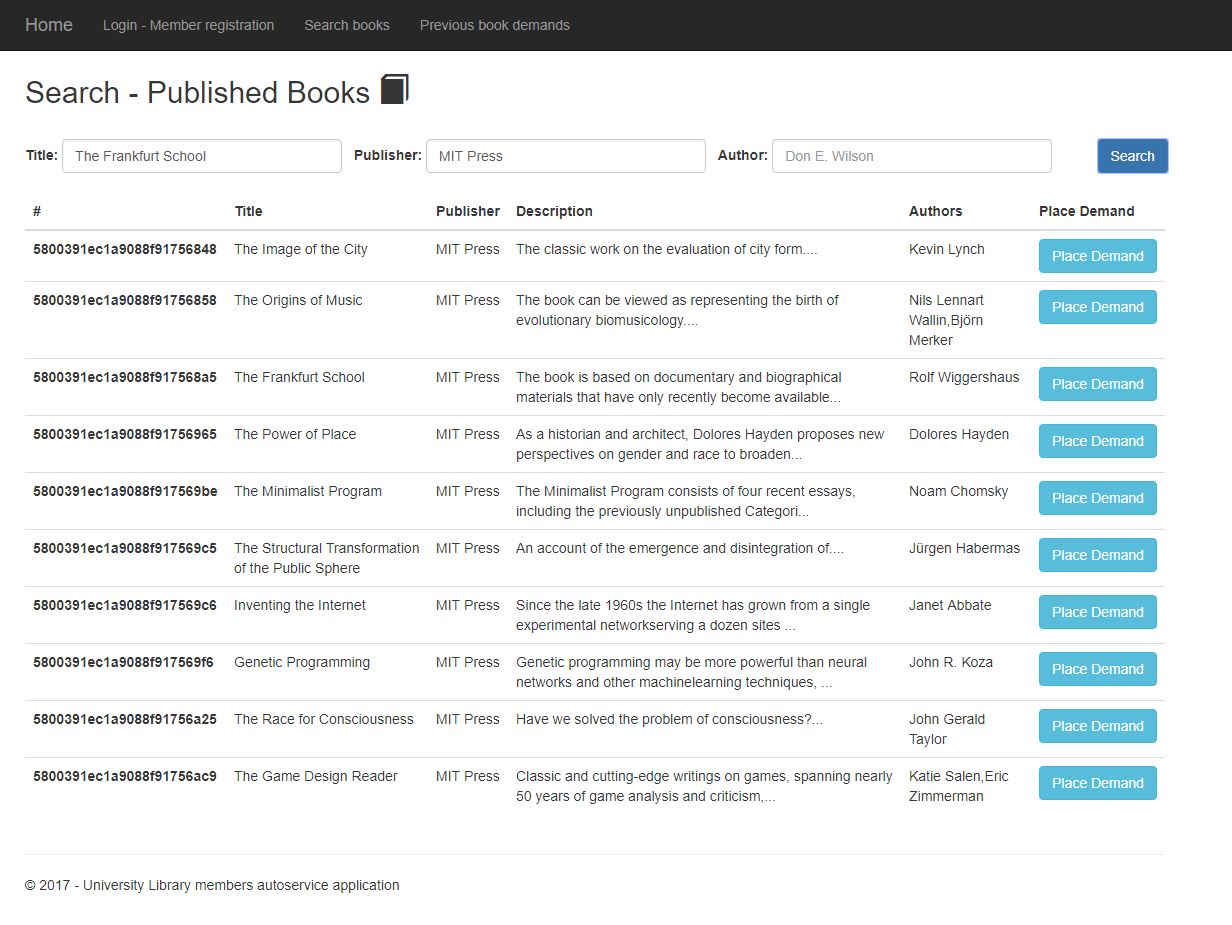
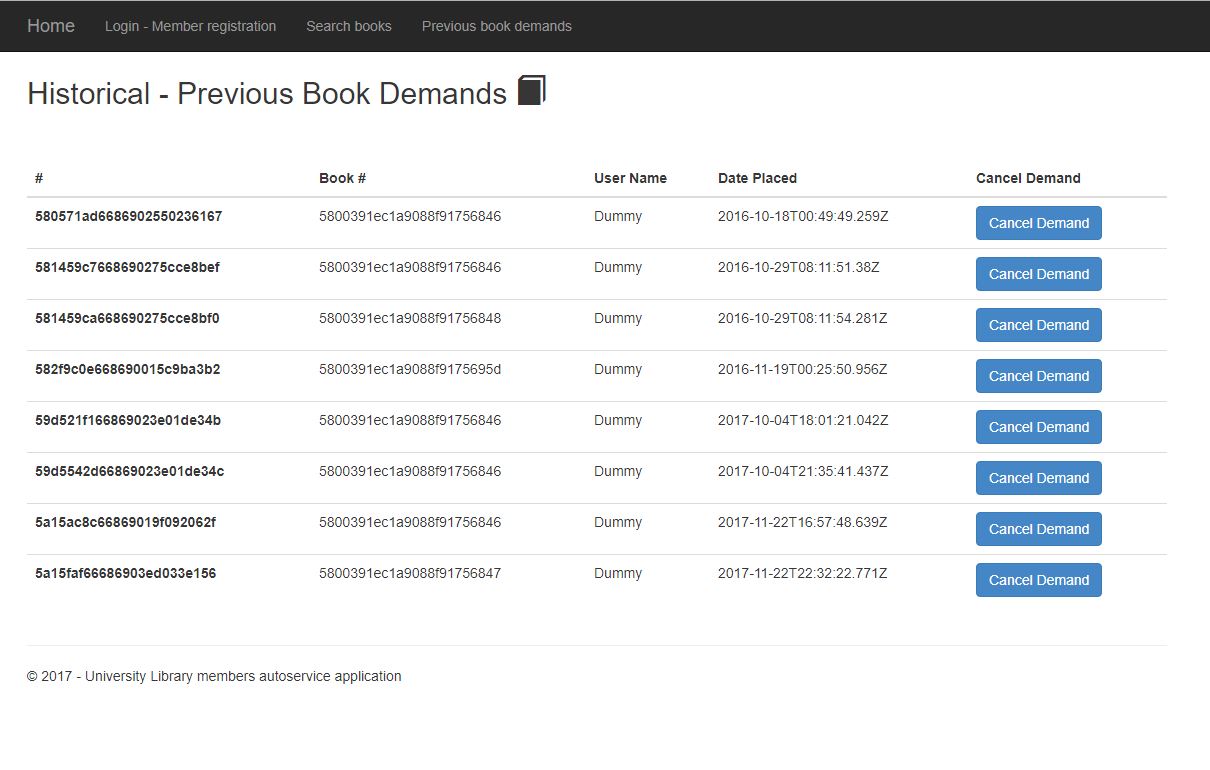
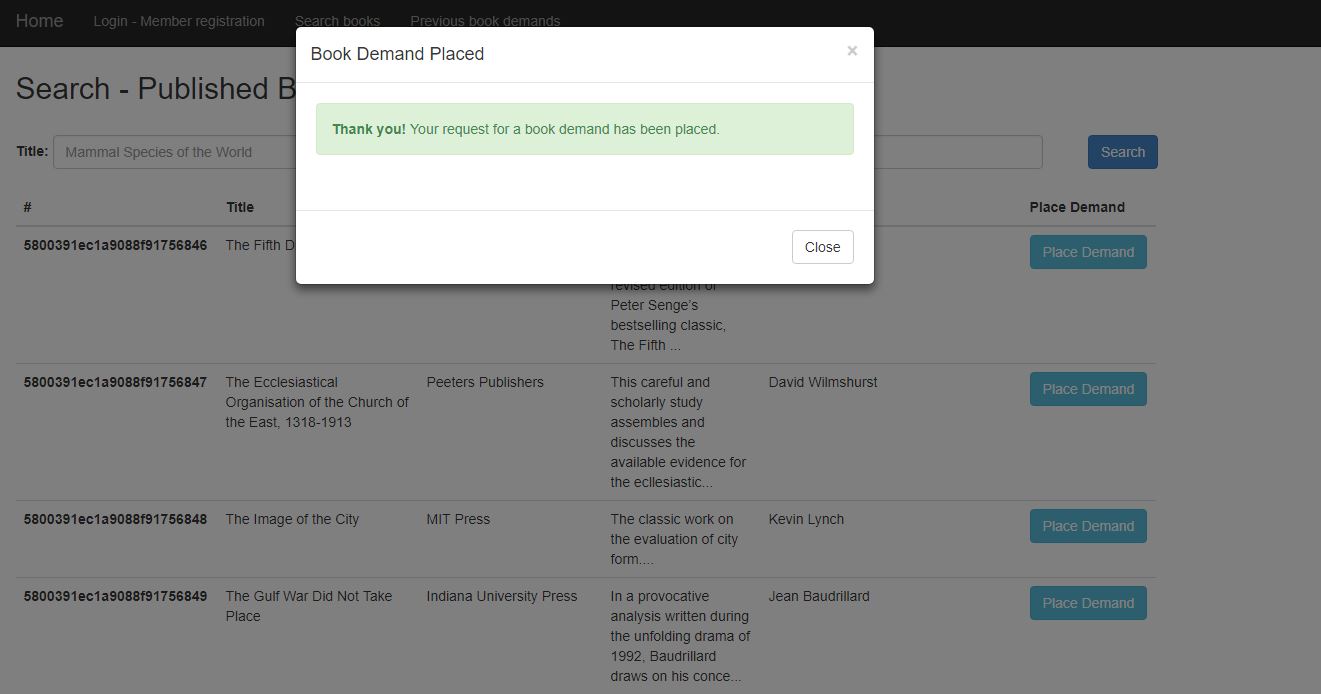
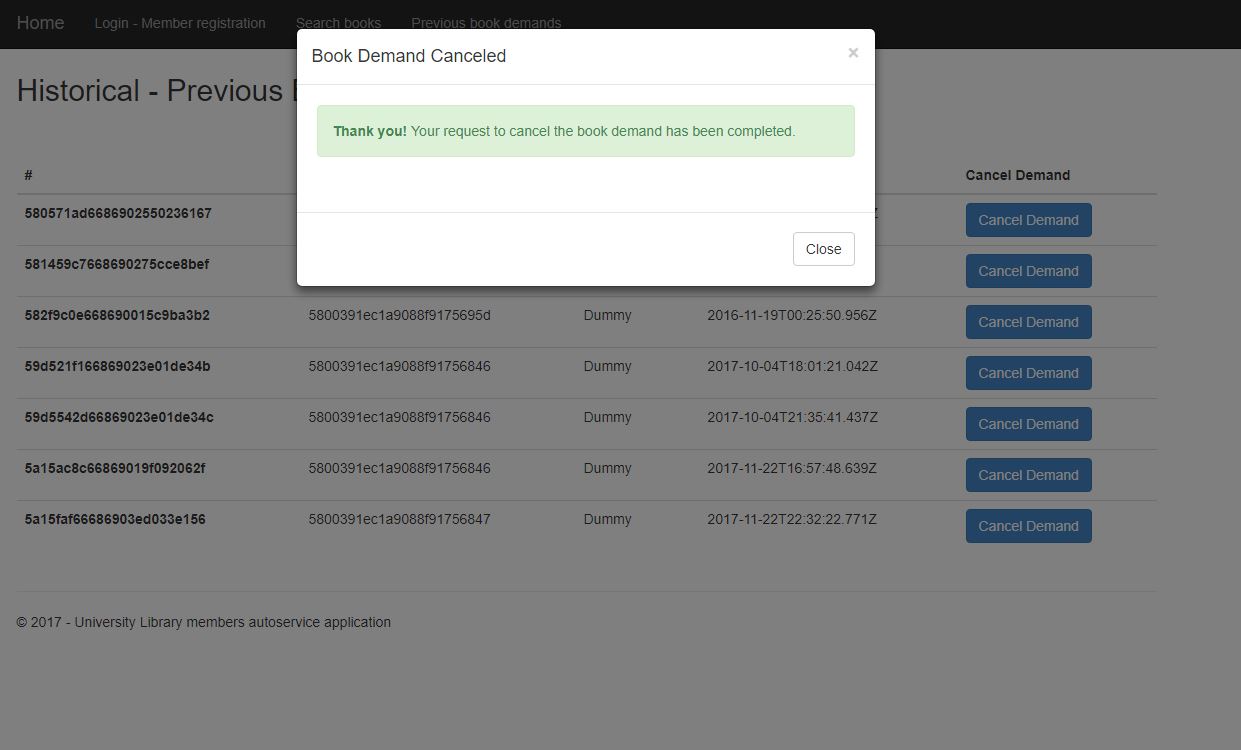
University Library management application for members to perform registrations, search books, place demands and check historical of demands placed. ASP.NET MVC 5 application with C#, MongoDB, Bootstrap, JQuery and Ninject for dependency injection.
You can find a detailed design document on the root folder with the name "Design - University Library.docx" and an image with the uml class diagram "ClassDiagram.png" (application also has a ClassDiagram.cd file wich maps all the classes, interfaces, etc from the app).
Pre-requisites:
- MongoDB Server installed
- MongoDB-CSharp driver
- Visual Studio 2015 with C#, ASP.NET and Web Tools, NuGet Package Manager
C# Ninject (NuGet install):
- Open the solution UniversityLibrary
- Right click the Solution in the Solution Explorer (View -> Solution Explorer)
- Select "Manage NuGet Packages for Solution..."
- In the Browse Menu, type "Ninject.Web.WebApi" into the Search box
- Select the item that matches the search
- On the right pane after selecting the package you need to select the projects where you want to install Ninject.Web.WebApi
- Select the checkbox for "UniversityLibraryWeb" and click "Install" button
- Confirm the changes clicking "OK" button when the popup appears with the summary of changes about to be done
- Accept the License Agreement by clicking "I Accept" button
- This will install two other package dependencies: Ninject and Ninject.Web.Common
- After successful installation you will see that some entries have been added to the packages.config file
Package - Ninject.Web.Common.WebHost:
- Follow the same steps as above searching for "Ninject.Web.Common.WebHost"
- Install it and it will install also the WebActivatorEx package (this will allow Ninject to perform some actions at the application startup so it can inject dependencies)
- Installation will add a new class called NinjectWebCommon.cs to your App_Start directory
- After successful installation you will see that some entries have been added to the packages.config file
Package - Ninject.MVC5:
- Follow the same steps as above searching for "Ninject.MVC5"
- Install it to the project "UniversityLibraryWeb"
- After successful installation Ninject.MVC5 will be ready to be used (it fixes some errors that appear when injecting the dependencies to the constructors of the controllers when using WebApi2 and MVC5)
MongoDB Driver for .NET:
- Open the solution UniversityLibrary
- Right click the Solution in the Solution Explorer (View -> Solution Explorer)
- Select "Manage NuGet Packages for Solution..."
- In the Browse Menu, type "MongoDB.Driver" into the Search box
- Select the MongoDB.Driver package (official .NET driver for MongoDB)
- On the right pane after selecting the package you need to select the projects where you want to install the driver
- Select the checkbox for "UniversityLibraryWeb" and click "Install" button
- Confirm the changes clicking "OK" button when the popup appears with the summary of changes about to be done
- Accept the License Agreement by clicking "I Accept" button
- After successful installation MongoDB.Driver will be ready to be used (entries added to the packages.config file)
- Pre-requisite: Having MongoDB Server installed
- Open a command prompt window (click Start and type "cmd") and run it as administrator (right click and select "run as administrator")
- Move to the bin folder under the path structure where you installed MongoDB (something like C:\Program Files\MongoDB\Server\3.2\bin)
- Execute the command "mongod" by typing it to the console, hit enter so you will have the MongoDB instance executing on default port (you will see a message indicating "waiting for connections on port 27017")
To access the list of books and a sample user there are two json files that need to be imported after creating the database, under the folder "Database" you will find:
- A .bat you can execute to create the database and import Books and Users.
- Book/User json files with sample data.
Or instead of executing the bat you can run the following commands from command line: mongo UniversityLibrary --eval "db.dropDatabase()" mongoimport -d UniversityLibrary -c User User.json mongoimport -d UniversityLibrary -c Book Book.json
- Open the Visual Studio Options dialog, click on the Package Manager node and ensure that 'Allow NuGet to download missing packages during build.' is checked (This will install any missing NuGet package during build so the build does not throw any error)
- When you load the solution you will see a Link over the Solution explorer that says "Restore NuGet packages", by clicking it you will install all the packages listed in the packages configuration file in the solution)
- Another way of performing this action is to right click the solution and select the option "Restore NuGet packages" so any missing package will be restored
- After successful build the application would be executed in a given port provided by IIS Express but the main url of the application would be "http://localhost:PORT_ASSIGNED_BY_IISEXPRESS/" for example "http://localhost:17368/"
- Install the package Microsoft.AspNet.Mvc to the UniversityLibraryWeb.Tests project
- Right clik the UniversityLibraryWeb.Tests and select Manage NuGet Packages, there search for Microsoft.AspNet.Mvc and install it (necessary to test the controllers by having the same MVC version as the web project)