Step 1: Set up Your Local Environment
Start by setting up your local development environment.
Install Node
For this tutorial, you need Node.js version 18+. To check your version of Node.js, run the following command in your terminal:
node -vIf you do not have Node.js installed, you can download it from nodejs.org (downloads) .
Set up a project directory
-
Create a new project directory.
-
Navigate to the directory using the terminal.
Generate a package.json file
- To create the project’s
package.jsonfile, enter the interactive initialization sequence . Run the following command in the terminal:
npm initPress enter to continue prompts.
To write a package.json file with default values, run npm init -y instead. Descriptive fields will be blank.
Install npm packages
- Install
big-design,big-design-icons,big-design-theme,dotenv,next,react,react-dom, andstyled-components.
npm install --save @bigcommerce/big-design @bigcommerce/big-design-icons @bigcommerce/big-design-theme dotenv next react react-dom styled-components- Install dev dependencies.
npm install --save-dev babel-plugin-styled-components @types/node @types/react @types/react-dom @types/styled-components typescriptbabel-plugin-styled-components is a supplement to the styled-components library that, among other things, offers improved debugging and minification of styles.
@types/node and @types/react contain TypeScript type definitions for Node.js and React.js respectively.
View tested package versions
You can view a list of all the tested package versions in the package.json file on the Step 1 branch of this sample app’s repo.
Add scripts
-
Open
package.jsonin your text editor. -
Update the
scriptsproperty, by adding thedev,build, andstartscripts.
{
  ...
  "scripts": {
    "dev": "next",
    "build": "next build",
    "start": "next start -p $PORT",
    "test": "echo \"Error: no test specified\" && exit 1"
  }
}- Save your changes.
Add the node and npm engines
-
Open
package.jsonin your text editor. -
Add an
enginesproperty with the following values:
{
  ...
  "engines": {
    "node": ">=16 <20",
    "npm": ">=8 <10"
  },
}- Save your changes.
Create a starter page
-
In the root directory of your project, create a
pagesfolder. -
In the
pagesfolder, create anindex.tsxfile. This is your app’s homepage. -
Open
index.tsxin your code editor. -
Add
PanelandTextBigDesign imports at the top of the file.
import { Panel, Text } from '@bigcommerce/big-design';The Panel component allows you to contain content in a structured format. To learn more about the BigDesign’s Panel component, see Panel Developer Docs .
Text is one of the many predefined typography components in BigDesign. BigDesign offers multiple properties to customize the typographic palette. To view available typography components, see Typography .
- Add the
Indexfunctional component below the import statements. You can view index.tsx (GitHub) .
const Index = () => (
    <Panel header="Homepage" margin="xxLarge">
        <Text>Hello world</Text>
    </Panel>
);

export default Index;
Next.js associates each file in the pages folder with a route based on the file’s name. Consequently, the Index React component you exported in pages/index.tsx will be accessible at /index.
Initialize BigDesign
Next.js allows you to use a theme provider and import CSS files from node_modules. In this tutorial, you integrate BigDesign React components to give your app a distinct BigCommerce look and feel.
-
Next.js uses the
Appcomponent to initialize pages. To override the defaultAppcomponent, add the_app.tsxfile to thepagesfolder. This is where you initialize BigDesign. -
Open
_app.tsxand importGlobalStylesfrom BigDesign andAppPropsfrom Next.js.
import { GlobalStyles } from '@bigcommerce/big-design';
import type { AppProps } from 'next/app'
Importing the GlobalStyles component will set BigCommerce’s base styles globally.
- Add the
MyAppfunctional component below the import statements. You can view _app.tsx (GitHub) .
const MyApp = ({ Component, pageProps }: AppProps) => (
   <>
       <GlobalStyles />
       <Component {...pageProps} />
   </>
);

export default MyApp;
The Component prop represents the active page. Consequently, it will change when you navigate between routes.
Initialize styled-components
Because BigDesign uses styled-components, we need to add additional configuration for both BigDesign and styled-components to function properly.
-
Add a custom
_document.tsxfile to your pages folder. -
Import
DocumentandDocumentContext, the built-in TypeScript types, from Next.js.
import Document, { DocumentContext } from 'next/document';- Import
ServerStyleSheetfrom styled-components.
import { ServerStyleSheet } from 'styled-components';- Extend the
Documentclass. You can view _document.tsx (GitHub) .
export default class MyDocument extends Document {
  static async getInitialProps(ctx: DocumentContext) {
    const sheet = new ServerStyleSheet();
    const originalRenderPage = ctx.renderPage;

    try {
      ctx.renderPage = () =>
        originalRenderPage({
          enhanceApp: (App) => (props) => sheet.collectStyles(<App {...props} />),
        })

      const initialProps = await Document.getInitialProps(ctx);

      return {
        ...initialProps,
        styles: (
          <>
            {initialProps.styles}
            {sheet.getStyleElement()}
          </>
        ),
      };
    } finally {
      sheet.seal();
    }
  }
}
Start the development server
- Using the terminal, open the root directory of your app and start the development server.
npm run dev- Open
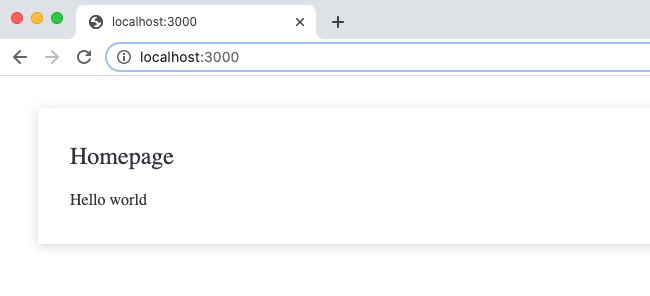
http://localhost:3000from your browser. You should see the text “Hello world” displayed under Homepage.
Next: Connect Your App to BigCommerce